After the terminal, the browser’s new tab was already the screen I saw most often, so I decided to make it useful. All day long, I open a new tab to find a pull request, jump to an internal tool, check a local app, or look something up before heading back to code.
Most of my customization effort had gone into the terminal: the commands, shortcuts, and small adjustments that make repeated work easier. The new tab was just the space before the next URL. Because opening it was already a reflex, putting useful links and context right there meant I wouldn’t have to remember to visit some separate dashboard.
That idea became the next version of Tabbit.
The friction is between tasks
A lot of browser work begins with trying to get back to where I already was. Which window has the repository open? Where is the cloud sign-in page? Which localhost port belongs to this app? Did I leave that issue open in a tab, or do I need to search for it again?
The questions are small. Answering them while trying to keep the actual task in my head is the annoying part. I open a tab with a clear goal, spend a few seconds hunting for the destination, and run into a handful of distractions along the way.
A good new tab page shortens that path. Frequently used work links sit ready to click, local apps get a dedicated spot, and search can jump to an existing tab instead of opening a duplicate. I haven’t measured hours saved. The benefit I care about is more immediate: making fewer small decisions before I reach what I opened the browser to do.
Put the familiar things first
My first design decision was how to order the page, because layout priority matters much more than how many features fit on screen. Everyday work links belong near the top, and dev servers need to be easy to reach. A quick brief can help me pick up an earlier thread, as long as it doesn’t push daily shortcuts below the fold—if I have to scroll past a summary just to open a local app, the summary is getting in the way. News can wait until after all of that.
With that priority in mind, Tabbit starts with search, a pair of small controls, and editable shortcuts. Below those sit my active dev servers and a compact brief that expands when I want more detail. Longer lists like extra work links, open tabs, and saved sessions stay folded out of sight until I ask for them.
I also wanted the page to rely on muscle memory. Simple pill buttons, consistent spacing, and a predictable layout let me spot where things are before I even read the labels.
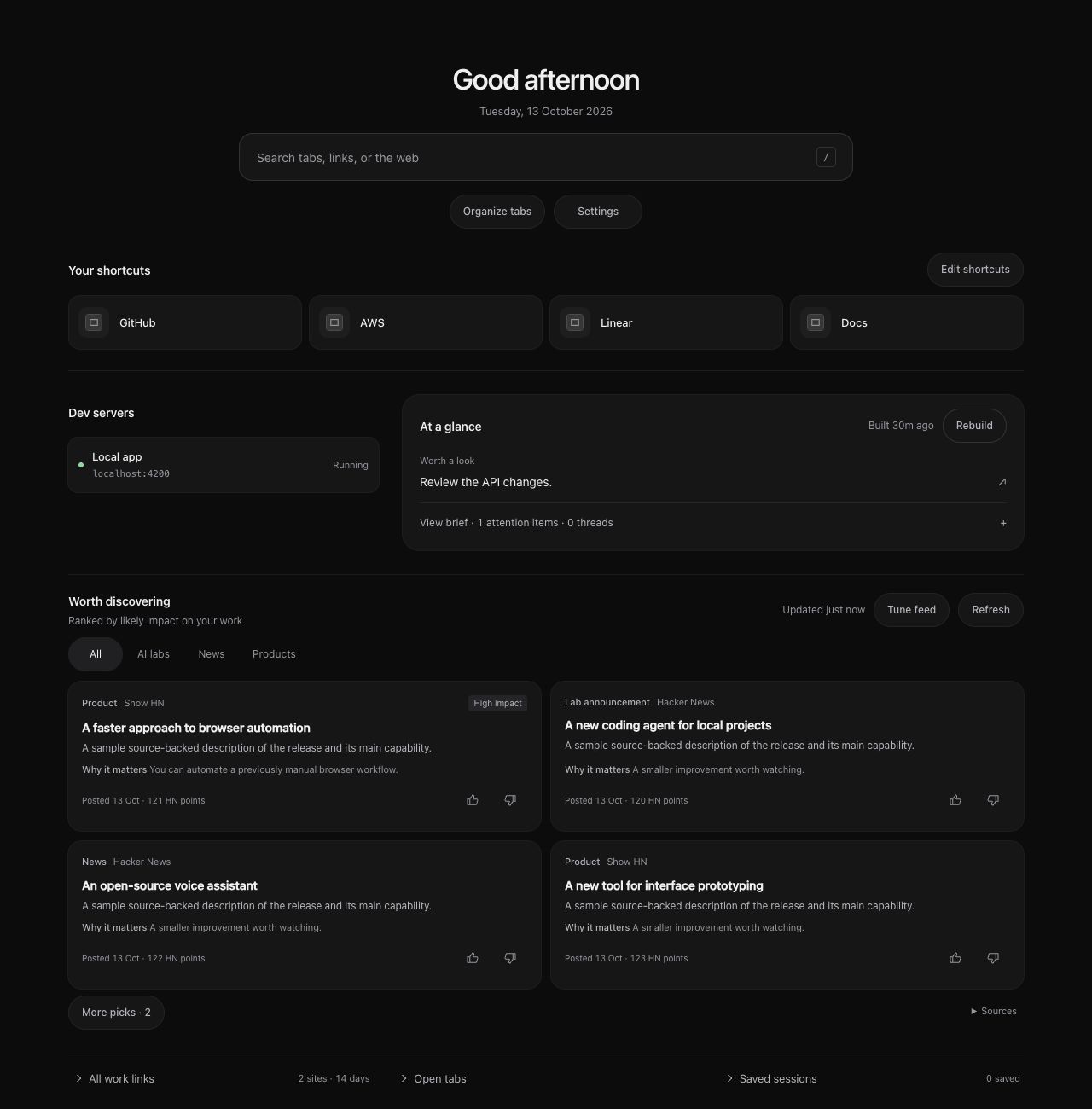
An illustrative Tabbit preview. The links and feed items shown here are demo data.
A new tab should remember
Nothing would ruin this page faster than recalculating everything from scratch each time I opened it. New tabs are disposable—I open one, change my mind, close it, and open another seconds later—so the page’s state needs to survive that habit.
To handle this, Tabbit generates briefs and feeds in the background and caches the results. Closing a tab doesn’t cancel an in-flight job, and a fresh tab can show the last saved edition while a new one prepares behind the scenes. Similarly, the dashboard renders saved data first before refreshing in the background.
If an interface makes me wait, rebuild state, or babysit a loading spinner, it has just handed me another chore. Keeping previous results ready means I can grab what I need and move on.
Give discovery a limit
I still want industry news and new product releases on this screen, since AI updates and developer tools can directly change how I approach my current work. The trick is catching those updates without turning every new tab into a reading session.
To keep things bounded, the feed presents a small edition up front, with an option to load more on request. It picks sources partly from my browsing interests alongside an explicit watchlist for major AI labs, aiming to rank recent, substantial announcements above older coverage and minor updates. Thumbs-up and thumbs-down buttons let me steer future editions, keeping each item focused on a simple question: what changed, and why might it matter to my work?
Automated curation has limits. Estimating an update’s impact is a judgment call by the model, source pages can be incomplete, and big announcements can still slip through. The feed gives me a quick shortlist with links to check out, rather than a substitute for reading the source material.
Keep the browser easy to leave
I also wanted to avoid locking my browser habits into a custom ecosystem. When Tabbit organizes tabs, it puts them into Chrome’s native tab groups. I can trigger grouping from the new tab, leave pinned tabs untouched, and keep managing those groups like normal Chrome tabs without moving my workflow into a separate workspace manager.
I took a similar approach with the AI setup. Tabbit accepts either an OpenAI API key or a locally signed-in Codex or Claude CLI, and it lets me pick separate models for selecting items versus writing summaries. Swapping providers doesn’t alter the page layout. Using CLI subscriptions does require a local bridge, and generating content still sends the relevant context—including page text when the brief or feed reads sources—to whichever provider I’ve configured.
All of these options exist to make the tool fit how I already work, rather than turning tool configuration into the work itself.
Improve the screen you already visit
Starting from an ordinary daily annoyance is my favorite part of building personal software. I didn’t need a new productivity app to check; I just needed the screen I was already opening throughout the day to help me get back on track.
I spend time tuning the terminal because I use it so much. The new tab deserves some of that care too: the next useful action within reach, with everything else quiet enough to let me get on with it.